
Last reviewed: 2026-08-23. The software and published packages may have changed since this review. Check the current releases and compatibility notes before using this guide with important data.
This guide covers the Android application that is available today. Nextcloud Native is alpha software, so keep another copy of important data and read the known limitations for the exact release before relying on sync or backup. iPhone and iPad builds are not available yet.
Step 1 Connect your account and confirm the Android app is online
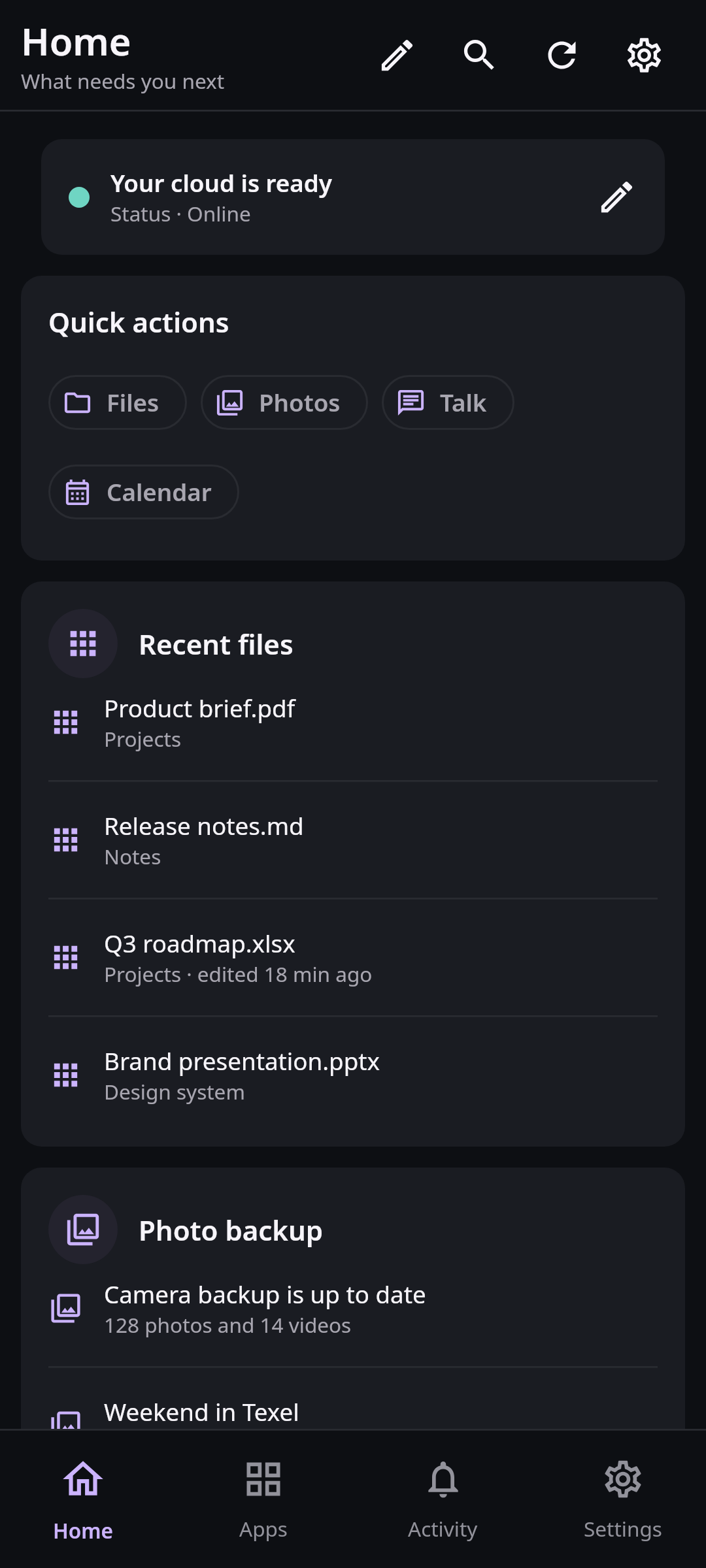
The Android Home screen confirms that Login Flow completed and summarizes real work from the connected Nextcloud account. Synthetic data in real Compose UI Next: Open Files and decide what must be stored on the phoneInstall the APK attached to the current GitHub prerelease and verify the published checksum or GitHub attestation. Android 8.0 or newer is required. Open the app, enter the full
https://address of your Nextcloud server, and continue to the server's trusted Login Flow page. Sign in there and approve the app-password request; do not paste your primary password into Nextcloud Native itself.After the browser returns to the app, Home should show your account and an online or offline status. An offline status can be temporary, but it means new server data cannot be confirmed. If connection fails, check the complete server address, open the server in a browser to confirm its certificate is trusted, and retry. Do not work around certificate warnings.
Step 2 Open Files and decide what must be stored on the phone
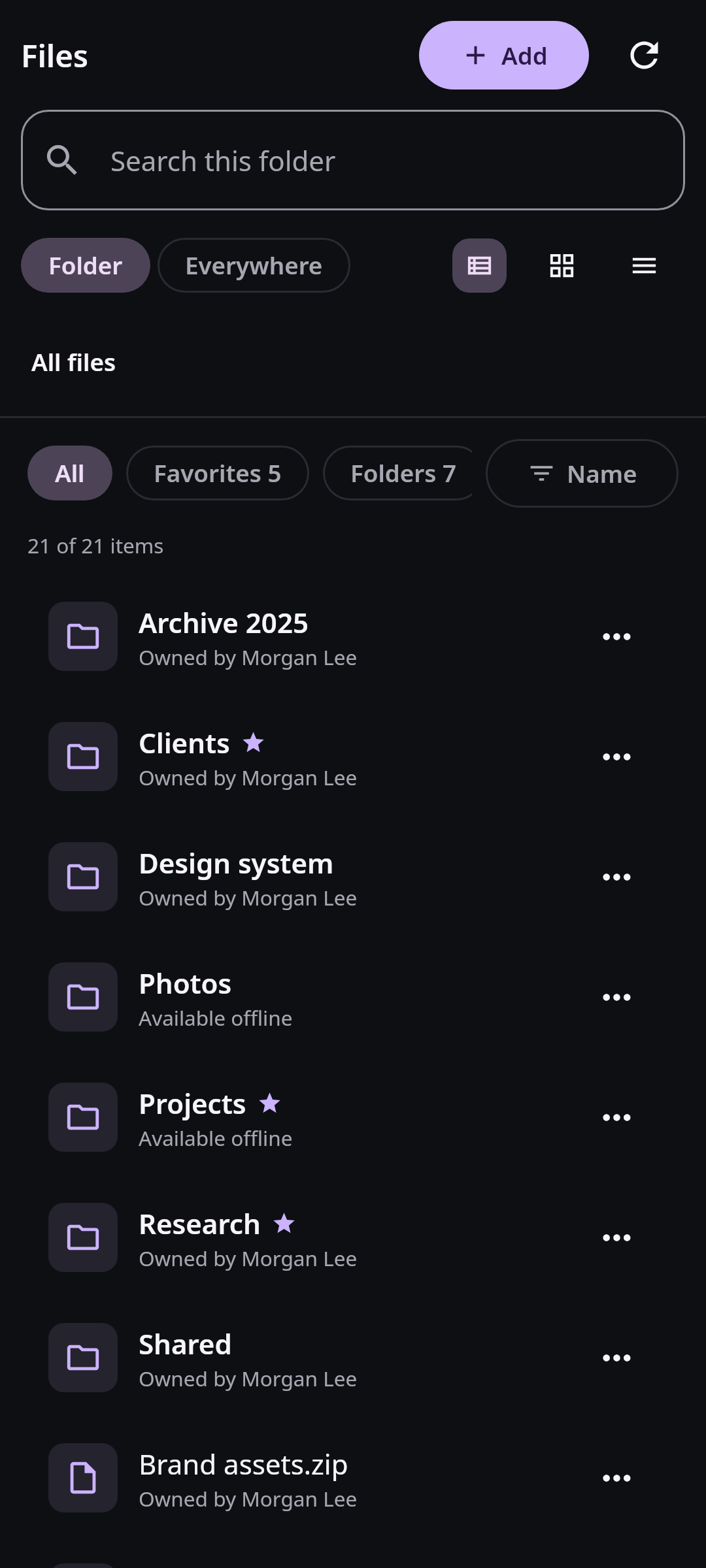
Files keeps cloud visibility separate from offline availability, so seeing a file does not imply that its original bytes are already on the device. Synthetic data in real Compose UI Next: Check device permissions and open a native workspaceOpen Files from Home or the app navigation. Browse into a folder and use an item's menu for actions such as previewing, sharing, or making a file available offline. A thumbnail or previously viewed preview can be cached even when the original is still online-only. Wait for the available-offline state before testing without a connection.
Nextcloud Native also appears in Android's system Files app while the account is connected. Opening a cloud file there downloads and caches a complete generation. Local edits are retained for guarded writeback; if the server changed first, the app records a conflict instead of silently replacing the newer remote file.
Step 3 Check device permissions and open a native workspace
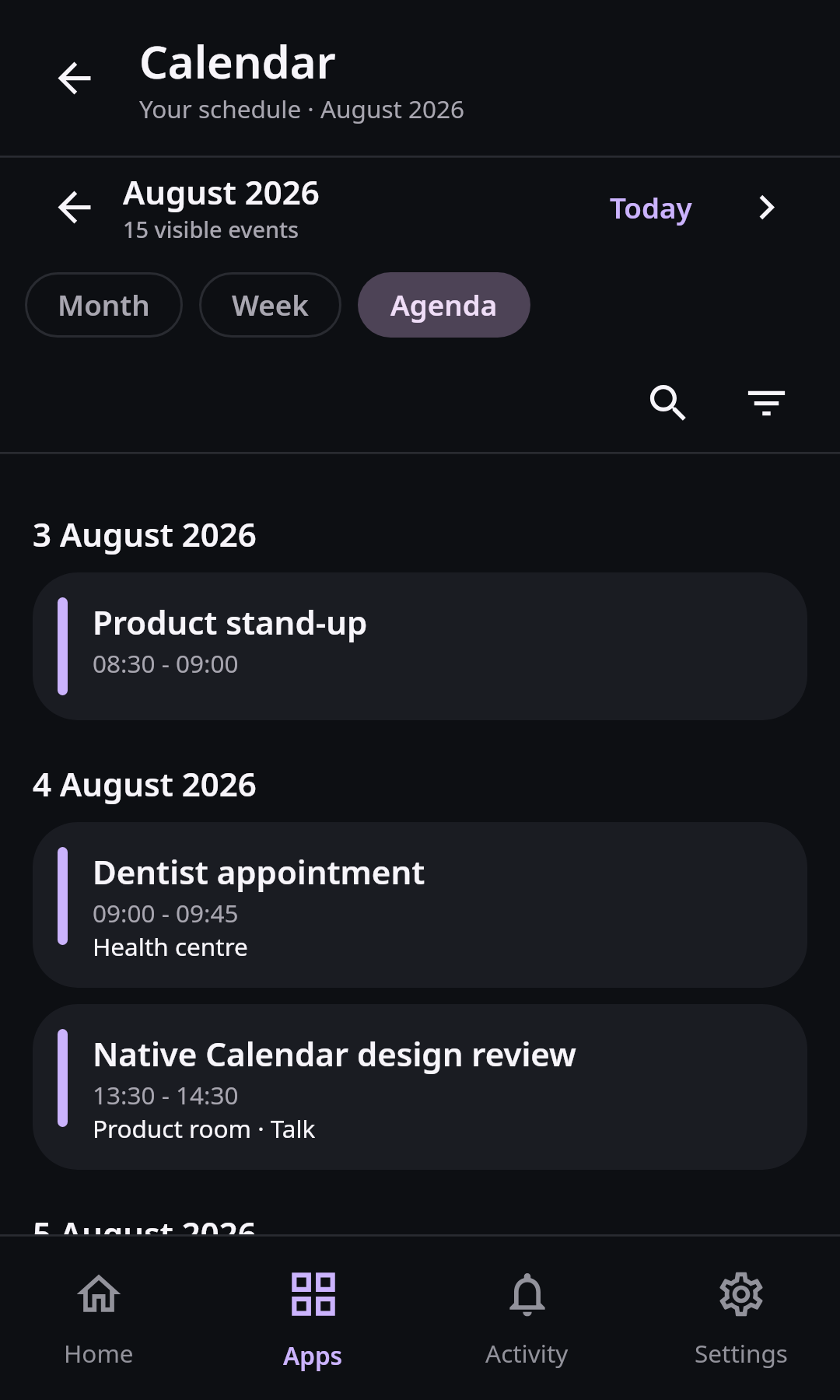
Android workspaces use phone-specific navigation and controls; Calendar is one example of a native surface rather than an embedded server web page. Synthetic data in real Compose UI On a phone, open Settings to see the settings overview, then open Notifications & device. Android system Back returns from a section to the overview before leaving Settings. On a tablet or an unfolded large screen, the section list stays beside the selected settings. Grant only permissions needed for the workflow you choose. Notifications, files and media, or media-library access can remain unavailable until a feature requests them. If Android reports a permission as blocked, use the Settings action to review it in the operating system.
Return to the app list and open a workspace such as Calendar, Photos, Talk, or Notes. Support varies by installed server app and version: some surfaces are complete, while adaptive or read-heavy views may expose fewer actions. The app should explain unsupported behavior rather than opening the server's web interface. Use Android system Back to leave nested content and return to the previous workspace state.
If you need to report a failure, open Settings, then Support. Requests shows the support requests available to the signed-in account and points to safe retry or discard actions when an earlier send still needs recovery. If reply delivery is uncertain, refresh Requests before retrying; when delivery is confirmed, clear the retained draft before writing another reply. New report lets you describe what happened and prepare a bounded diagnostic report, while Privacy explains what the report can contain. The report includes a one-time heap, non-heap, direct-buffer, mapped-buffer, uptime, thread, garbage-collection, and event-history snapshot where Android exposes those counters. It excludes server URLs, account names, file names, paths, credentials, response bodies, and file contents. Draft text stays in memory until the app closes and is not saved to disk. Preparing or previewing a report does not submit it. Review the report, then choose Send only when you intend to submit it to support.